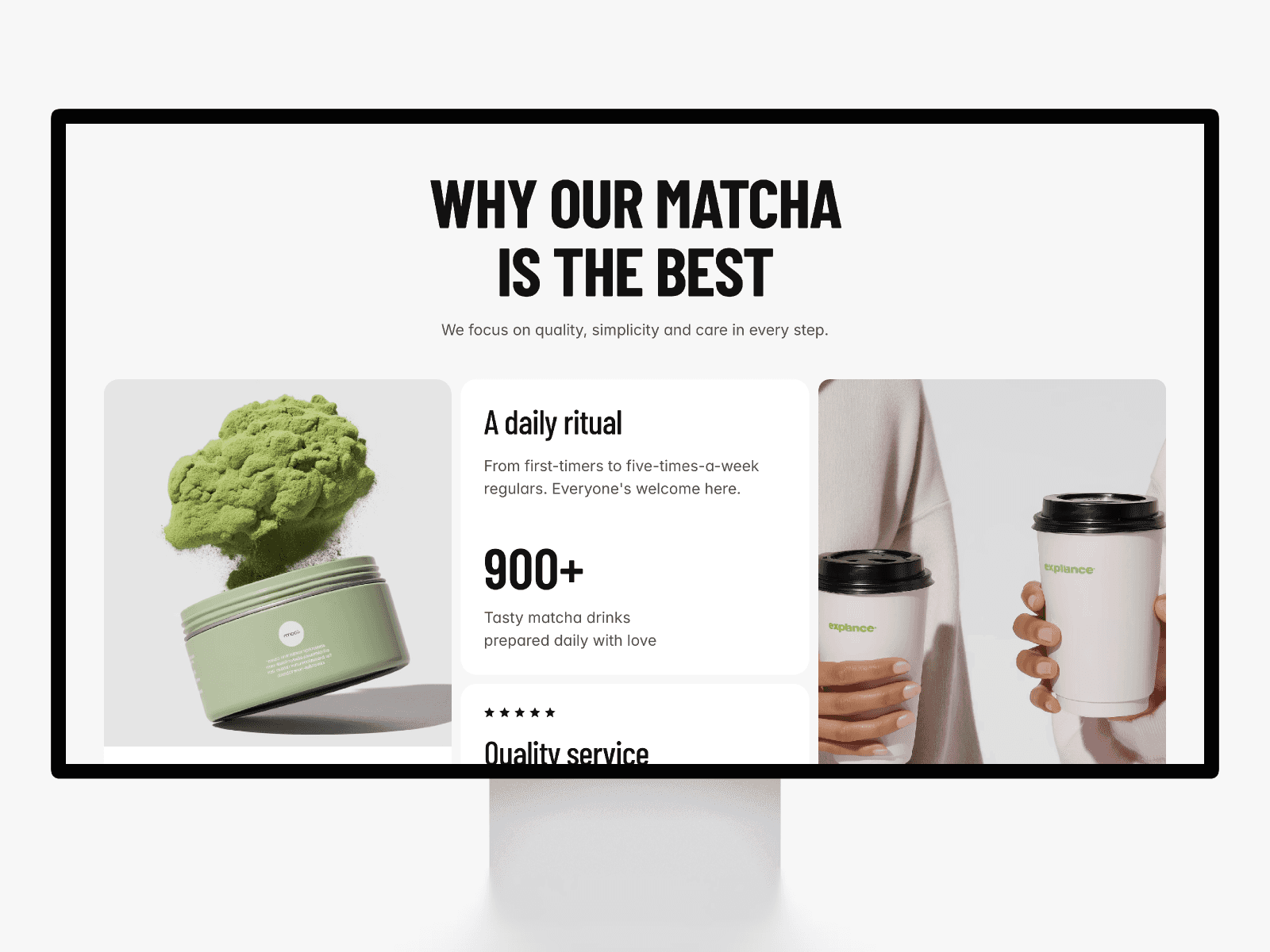
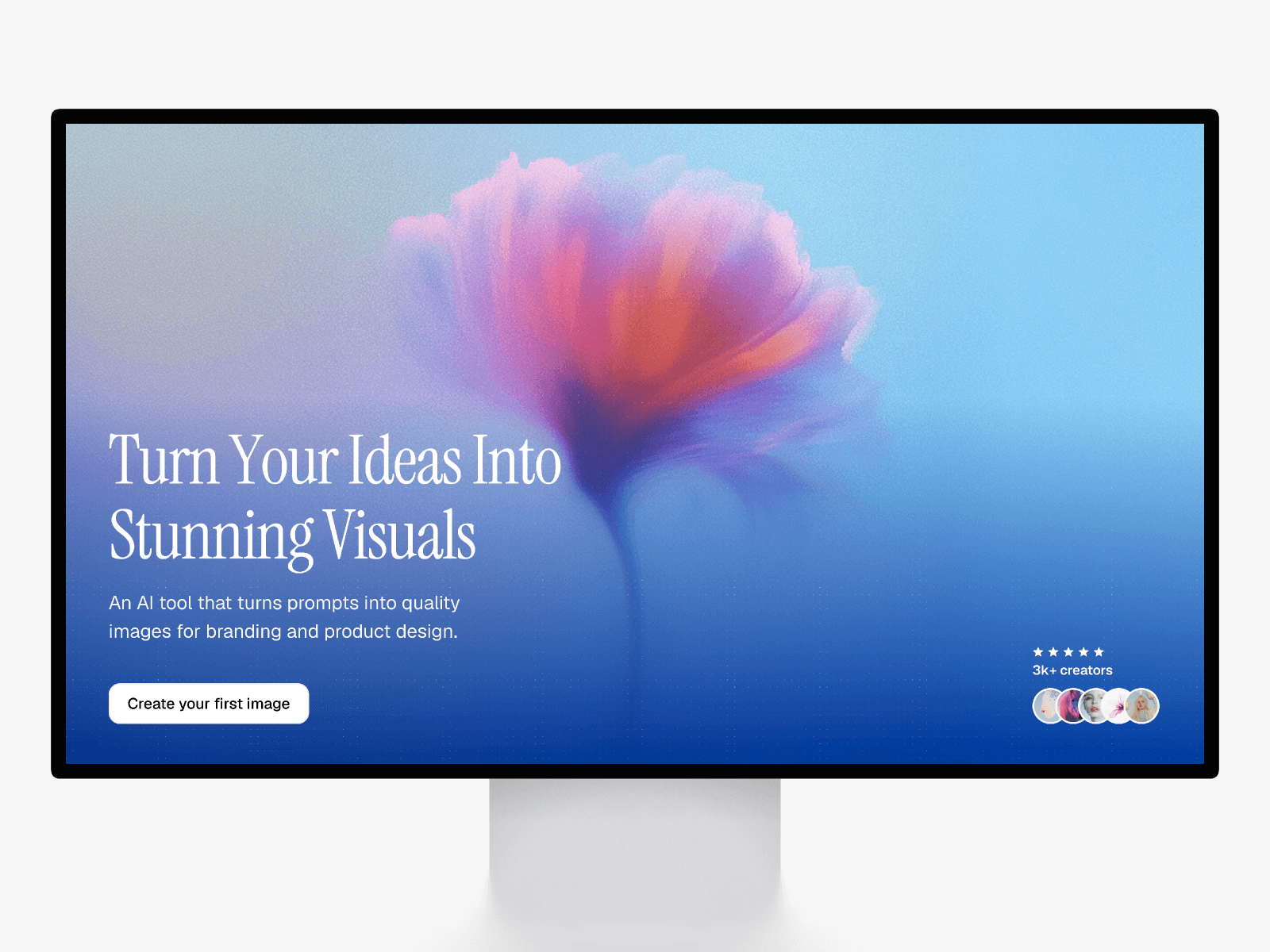
Blend two images with noise, patterns, or textures to create stylish overlays—perfect for hero images, product shots, and editorial visuals.
About this component
Image Overlay Effect merges a base image (photo/artwork) with a top “effect” image (grain, pattern, film dust, gradient, etc.). Using opacity and blending modes, you can craft any effect you need, like subtle film grain or a bold poster-style textures. Drop it into heroes, case studies, product galleries, or blog covers to keep your art direction consistent with just a few tweaks.
Key features
Two-layers: Base image + Effect image (pattern/noise/texture)
Blend controls: Multiply, Screen, Overlay, Soft Light, Hard Light, Color Dodge & more
Opacity slider: Dial in subtle to dramatic looks
Sizing modes: Cover / Contain / Fill with position controls
Responsive by default: Looks great across breakpoints
Great for
Hero sections with tasteful grain or gradient texture
Product shots with soft noise or halftone patterns
Case-study thumbnails with consistent art direction
Editorial/blog covers with layered poster effects
Portfolio grids with subtle brand textures
How to use
Drop Image Overlay Effects onto your canvas.
Set your Base Image (photo, render, product).
Set an Effect Image (grain, pattern, gradient).
Choose a Blend Mode and adjust Opacity.
Notes & tips
Multiply is great for grain on bright images;
Screen/Overlay can lift darker shots.
Need help or have questions?
Reach out to a.thiery@lamanote.com or message me on X - I'm here to help with any questions about the template.