
Three ways to connect a beehiiv newsletter to your Framer site, from a simple link to a fully native signup form.
A newsletter is one of the few channels you fully own. Social reach goes up and down, but an email list stays with you. If your site runs on Framer, adding a signup form takes a few minutes.
In this guide I walk through three ways to connect beehiiv, a newsletter platform, to a Framer site. They go from the quickest setup to the most polished one.
Disclosure: some links in this post are affiliate links. If you sign up for beehiiv through them, I may earn a commission at no extra cost to you, and new users get 20% off for 3 months.
Before you start
You need a beehiiv account with a publication set up, and a Framer site you can edit. beehiiv’s embedded subscribe forms are available on all of its plans, so you can follow along on the free plan.
Option 1: Link to your beehiiv subscribe page
This is the fastest route. Every beehiiv publication comes with its own hosted subscribe page. Add a button to your Framer site, for example in the navigation or the footer, and link it to that page.
Good for: getting signups live today. Trade-off: visitors leave your site to subscribe.
Option 2: Embed a beehiiv subscribe form
beehiiv lets you build a signup form in its dashboard and paste it into any site you own. Here is how it works:
In beehiiv, go to Subscribers > Subscribe forms and click Create new form.
Name the form with the pencil icon at the top of the builder. The name is only for you and visitors never see it.
On the Content tab, set the title, subtitle, fields and button text. Email is the only required field.
Use the Style tab to match the form to your site’s colors and fonts.
Click Save changes, then Get embed code, and copy the whole code block.
In Framer, open the Insert menu, add an Embed component and paste the code into it.
Preview or publish your site and submit a test email to make sure it arrives in your beehiiv audience.
Good for: a working form in a few minutes. Trade-off: the styling lives in beehiiv, so the form can look slightly different from the rest of your Framer design.
beehiiv’s own guide to embedded subscribe forms covers every setting in the form builder if you want to go deeper.
Option 3: Build a native Framer form with the Forms plugin
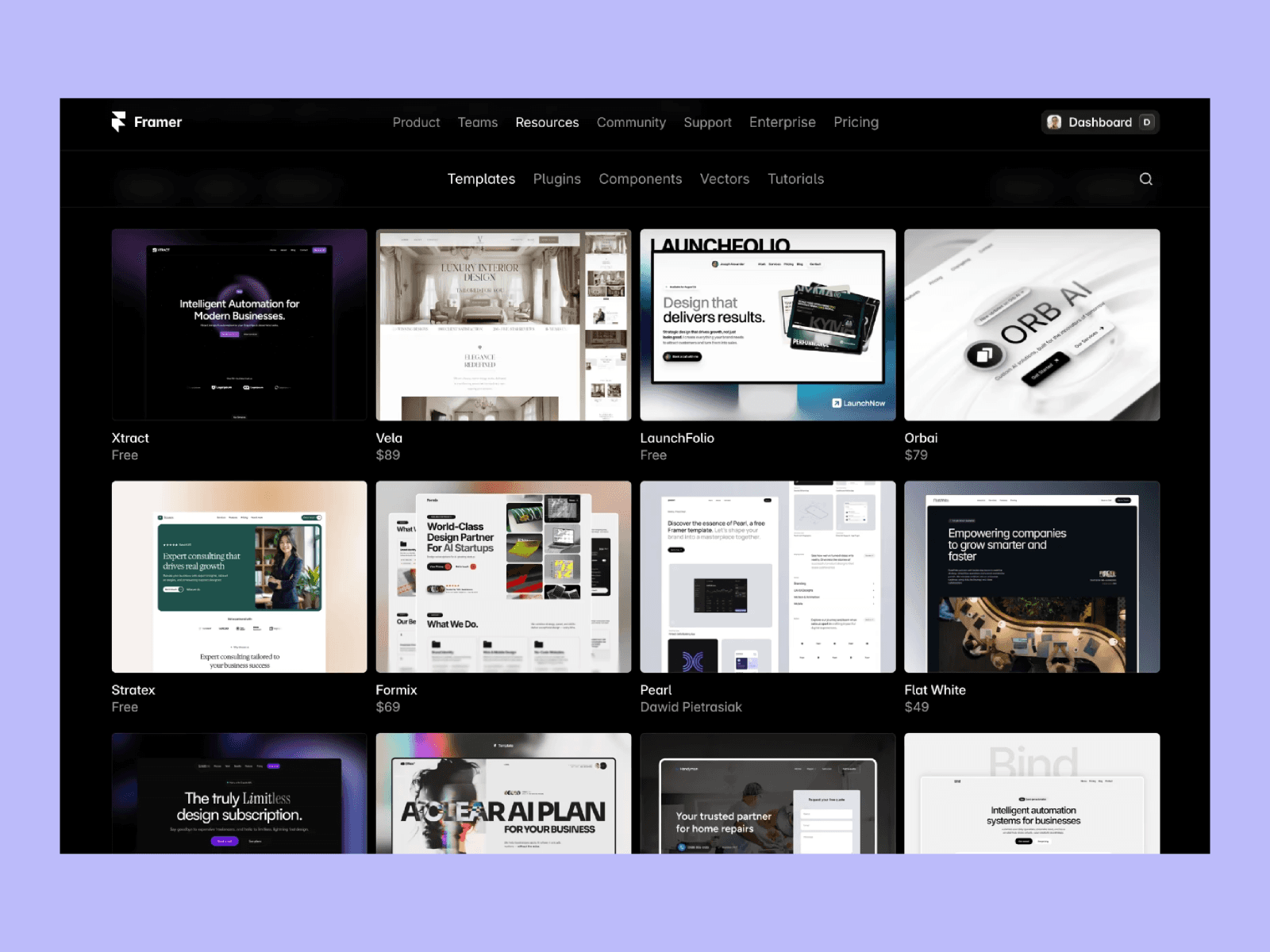
If you want the form to look exactly like the rest of your site, build it in Framer instead. The Forms Plugin on the Framer Marketplace lists beehiiv as a native integration, so signups go straight to your beehiiv audience without any embed code.
Install the plugin, design your signup form on the canvas like any other section, then connect beehiiv in the plugin’s integration settings. Check the plugin page for current pricing before you commit.
Good for: forms that match your design down to the pixel. Trade-off: one more plugin to set up and keep an eye on.
Where to put your signup form
In the footer. It shows on every page, and if your site uses a layout template you only add it once.
At the end of blog posts. Readers who reach the end are the most likely to want more.
As its own section on the home page. Add one line about what subscribers get, so they know why they should sign up.
If the form doesn’t work
Check that you pasted the whole embed code. Go back to the form in beehiiv and click Get embed code again.
Test with an email that isn’t subscribed yet. An existing subscriber can make the form look like it did nothing.
Try a private window with browser extensions turned off, since ad blockers can stop form submissions.
Publish your Framer site again after adding or changing the embed.
Wrapping up
Start with whichever option fits the time you have. A link gets you signups today, the embed takes a few minutes, and the Forms plugin gives you full design control. If you want to try it, you can start with beehiiv here and get 20% off for your first 3 months.
Some of my templates, like Good Taste and String, already include a newsletter or waitlist section, so you can connect one of these options straight to the existing design.

I'm Ava. I make Framer templates and write about design and development here. You can also find me on X.
I use AI as a writing tool — to improve my English, research topics, and develop ideas. Everything you read reflects my own perspective and experience as a designer.