
Framer has a built-in field for Google Analytics, so setup is faster than on most platforms. Here's how to connect GA4 in three minutes, no custom code needed.
Here's the whole process.
What you need
Two things:
A Framer site on a paid plan
A Google Analytics 4 account with a property set up for your site
If you don't have GA4 yet, you can create an account for free at analytics.google.com. Set up a property, choose Web as the platform, and you'll get a Measurement ID that looks like G-XXXXXXXXX.
The setup in Framer
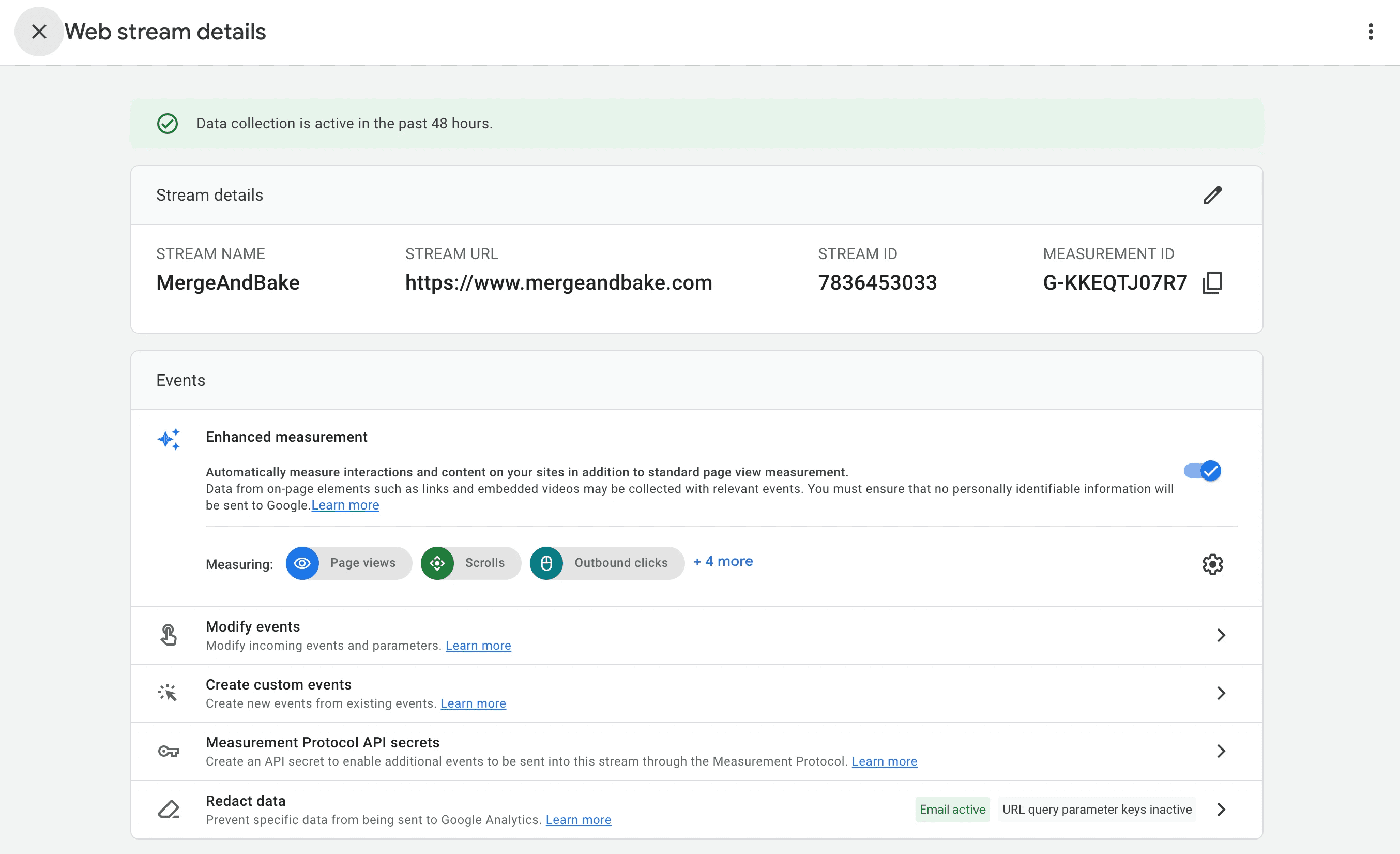
Copy your Measurement ID. In Google Analytics, go to Admin → Data Streams → click your web stream. The Measurement ID is in the top right. It starts with
G-.Open Site Settings in Framer. Click the three-dot menu in the top right of the editor and select "Open Settings."
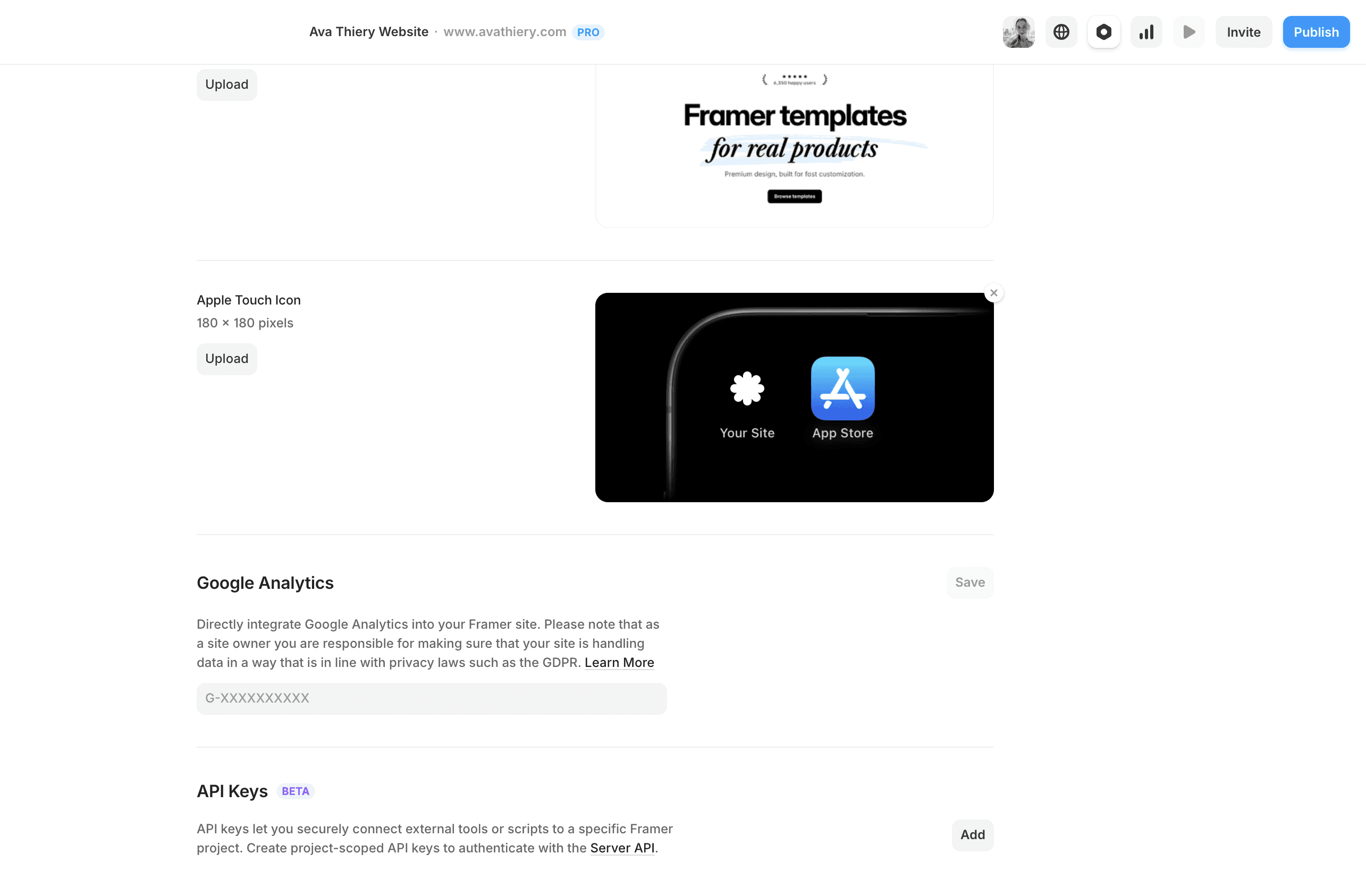
Go to the General tab. Scroll down until you see a field labeled "Google Analytics Measurement ID."
Paste your ID and save. No custom code or extra script tags needed.
Publish your site. The connection goes live the moment you publish or republish.
How to check it's working
After publishing, open your live site in a new tab, then go to Google Analytics. Open Reports → Realtime. You should see yourself as an active user within a minute or two.
If you don't, double-check that:
The Measurement ID was pasted correctly with no extra spaces
You actually published the site after saving
You aren't blocking analytics with a browser extension or ad blocker when testing
If you want to use a different analytics tool
The dedicated GA field only accepts Google Analytics IDs. For other tools like Plausible, Fathom, Simple Analytics, or Mixpanel, go to Site Settings → General → Custom Code and paste the tracking script into the head section. Save, publish, and you're set.
Once you're tracking
The real value of analytics shows up after a few weeks of data. Look at your top pages, your traffic sources, and where people drop off. If you're working on a portfolio or template site, the patterns will tell you which sections people actually care about, and which ones are worth rethinking.
I'm Ava. I make Framer templates and write about design and development here. You can also find me on X.
I use AI as a writing tool — to improve my English, research topics, and develop ideas. Everything you read reflects my own perspective and experience as a designer.